Software simulations
Recourse vs Adobe Captivate for software simulations
Adobe Captivate builds software simulations from its own recorder: you record a procedure once and it builds Demo, Training and Assessment versions from that one pass. Recourse makes the same kind of simulation from a click-through in Chrome or from a recording that already exists, and keeps it current after the software changes. This page compares the two on the job of turning a software task into practice that an LMS can track.
Updated
Facts checked on 29 October 2026 against each vendor's own pages.
Choose Captivate if you build simulations by hand, can record each procedure in its own recorder and want a published price of US$39.99 a month for a full authoring tool. Choose Recourse if you need a simulation from a recording you already have, such as a Loom, a Zoom share or a recorded UAT session, or if the software changes often and you want to re-capture one step and have the change reach every LMS copy without a re-upload.
Where each tool starts
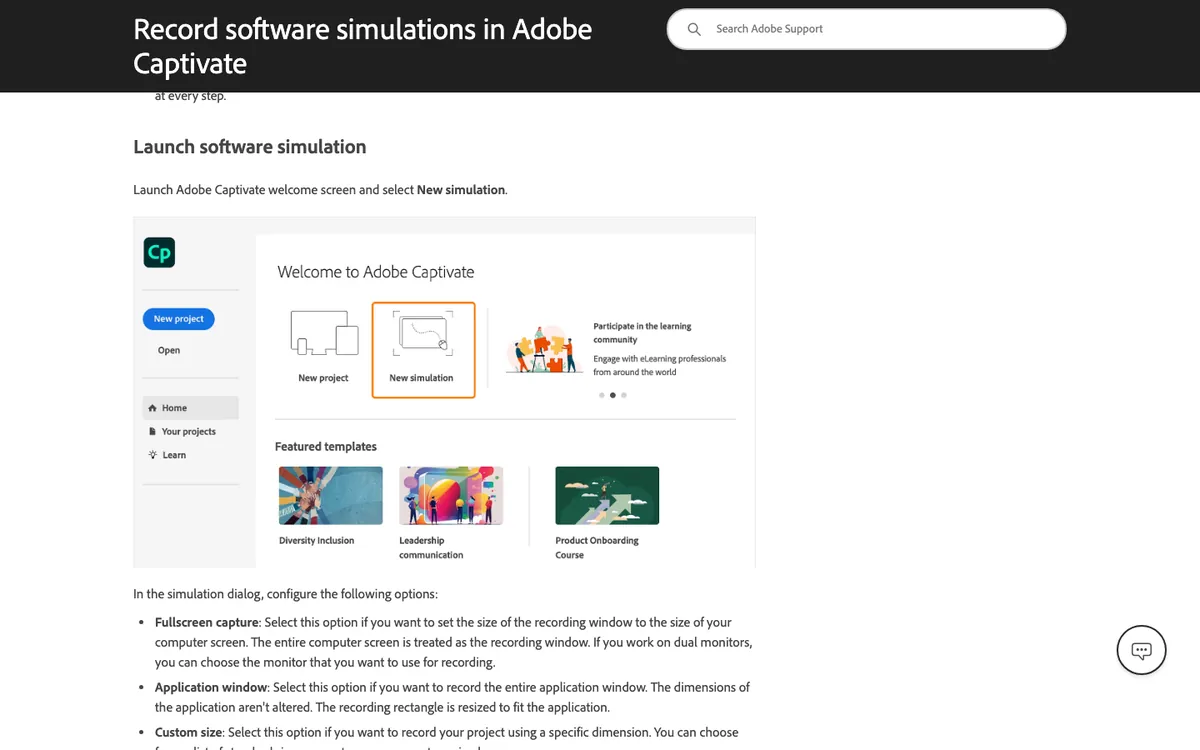
Adobe Captivate is a desktop authoring app for Windows and macOS. In the current version, 13.2, you choose New simulation, pick Demo, Training or Assessment (or all three at once), and do the task while the recorder runs. Captivate records clicks and keyboard input and turns them into slides: Demo adds text captions from the labels of what you clicked; Training adds click boxes, input fields and hint and failure captions, so the learner must click the right place to move on and sees a failure caption after a wrong click; Assessment drops the hints and scores each correct click as a point. Ticking "Include in quiz" on a click box sends it to the LMS with its own interaction ID. Full-motion recording captures drags and other movement as video slides.
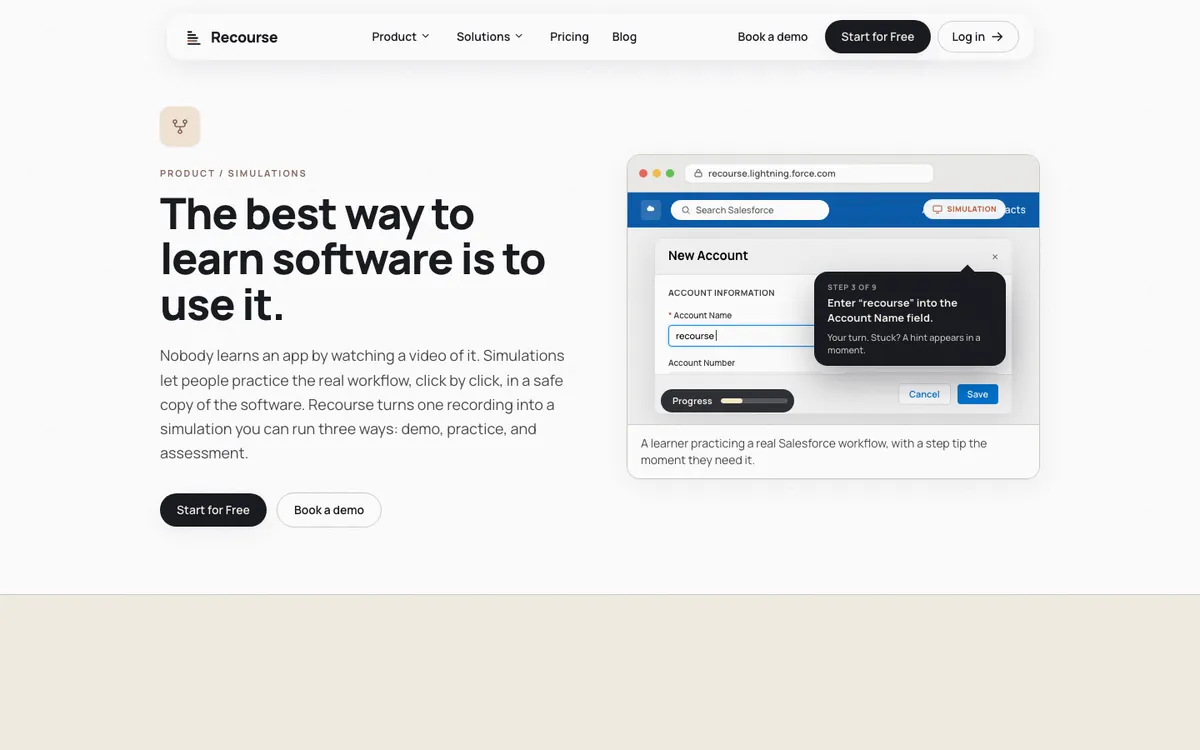
Recourse runs in the browser. You either click through the task in the real web app with the Chrome extension, which captures the screens, the clicks and the structure, or upload any recording of someone doing it: a Loom, a Zoom screen share, a recorded handover, an old MP4. Recourse generates the steps and narration, a reviewer edits every step, and the result is a simulation with three modes: Demo (a guided walkthrough with narration), Practice (the learner does each step in a safe copy; if stuck, a hint, then a nudge, then the answer) and Evaluate (scored, with a pass mark, reported to the LMS). The simulation sits inside a course you can edit with course blocks, themes and AI.
Side by side
| Adobe Captivate | Recourse | |
|---|---|---|
| What you start from | Its own recorder, at the moment you record | A click-through with the Chrome extension, or any existing recording |
| Modes | Demo, Training, Assessment | Demo, Practice, Evaluate |
| Wrong click in practice | Failure caption; hint caption when the learner hovers near the target; attempts set by the author | A hint, then a nudge, then the answer |
| Scoring | Each correct click is a point; "Include in quiz" reports to the LMS | Evaluate is scored against a pass mark and reports to the LMS |
| Typed input | Yes, input fields from recorded keystrokes | Yes, typed steps captured with the task |
| Captions and narration | Captions from the labels of what you clicked; narration from your microphone | Steps and AI voice narration generated; or your own voice |
| AI | Generate text, image, avatar, transcript and voice since 13.0, on generative credits; the simulation help page describes no AI step | Generates the steps and narration from the recording; AI editing in the course |
| When the app changes | Re-record or edit the slides, then republish the package | Re-capture the step and regenerate it |
| LMS output | SCORM 1.2, SCORM 2004, AICC, xAPI | Static SCORM and xAPI from Pro; live SCORM on Team |
| Where it runs | Desktop app, Windows and macOS | Browser, including on a Mac |
| Review | Share for Review links with comments | A reviewer edits each step before it ships; no threaded comments |
| Price | US$39.99 a month for an individual; teams and enterprise through Adobe sales | Free 30 days; Solo, Pro and Team on request |
Where Captivate is ahead
- A published price per seat. US$39.99 a month buys the full authoring tool, the new Captivate and Captivate Classic, with 100GB of storage and 25 generative credits a month.
- Full-motion recording. Drags and other continuous mouse movement are captured as video. Recourse simulations are built from clicks and typed steps.
- A responsive slide canvas. Adobe's buying guide says courses in the new Captivate are responsive by default, with desktop, tablet and mobile previews while you author.
- The Adobe ecosystem. Firefly image generation, Adobe Fonts, Adobe Learning Manager and Adobe licensing through VIP or an enterprise agreement, which matters if your company already buys from Adobe.
- Desktop applications. The recorder captures any application window on Windows or macOS. Recourse covers desktop apps only when you upload a video of them.
- Depth and track record. Click boxes, captions, attempts, quizzes, widgets and review links are all mature, and Adobe has shipped 13.0, 13.1 and 13.2 since 2025.
Where Recourse is ahead
- Any recording as input. Captivate makes a simulation only from its own recorder, at the moment you record. Recourse takes a recording that already exists, such as a Loom, a Zoom share, a recorded UAT or handover session or an old MP4, so the expert who knows the task does not need to sit with the author.
- Structure and narration generated. Recourse writes the steps and the voice narration from the recording, and the reviewer edits them. In Captivate the author writes or edits each caption and records or adds the audio.
- One step, not one project, when the screen changes. Re-capture the step that changed and regenerate it, instead of re-recording or editing slides and republishing.
- Live SCORM. On Team the LMS package points at the hosted course, so an edit reaches every LMS copy with no re-upload. Adobe's pages do not describe a hosted package that updates in place.
- Practice that coaches. When a learner is stuck, Practice escalates from a hint to a nudge to the answer, instead of a failure caption and another attempt.
- Nothing to install. Recourse runs in the browser and starts with 30 days of full access.
What Recourse does not do
No overlay or in-app guidance on the live application. No branching yet: each simulation follows one right path. Branching is on the roadmap. No LTI, cmi5 or AICC. No native LMS. No threaded review comments. Desktop applications are covered only by uploading a video. Recourse cannot open Captivate project files, so existing Captivate simulations have to be recorded again or rebuilt from a video. If you need branching or AICC today, Captivate is the better fit.
Pricing
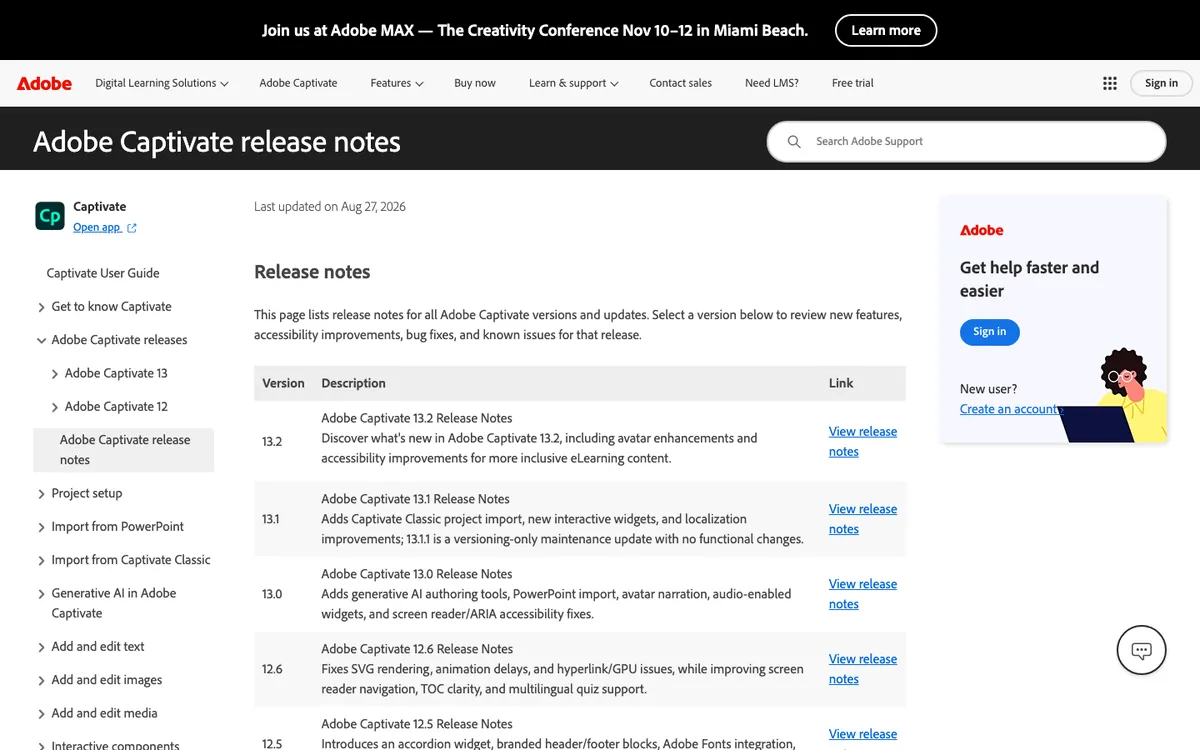
Adobe Captivate: US$39.99 a month for an individual on Adobe's buying guide, which includes the new Captivate, Captivate Classic, 100GB of storage and 25 monthly generative credits. Team (VIP) and Enterprise (ETLA) licences go through Adobe sales and include 700 monthly premium generative credits. Capterra still lists US$33.90 a month; Adobe's own page is the current figure.
Recourse: Free for 30 days with full access. Paid plans (Solo, Pro, Team): pricing on request, book a demo at /pricing. Solo covers courses only, shared by Recourse link, with no SCORM export. Pro adds simulations, the Chrome extension, static SCORM and xAPI. Team is three seats with unlimited simulations, live SCORM.
Frequently asked questions
Can Recourse replace Captivate for software simulations?
Is Captivate still updated?
Does the new Captivate still record software simulations?
Does Captivate have AI?
What happens when the software I recorded changes?
How do Captivate and Recourse prices compare?
How we checked
Captivate's facts were read from the linked Adobe pages on 29 October 2026. Recourse's facts come from our pricing page and product. Corrections to hello@recoursehq.com.
- Record software simulations in Adobe Captivate
- Captivate buying guide and Captivate product page and FAQ
- Captivate release notes, 13.2 release notes and 13.1 release notes
- Generative AI in Adobe Captivate
- Capterra listing for Adobe Captivate
- Recourse pricing and Recourse simulations
Related
Last checked 29 October 2026. Adobe's prices and features are taken from its public pages and can change.